
OpenEduCat Board: an online board for teaching. One screen for the whole lesson.
Put a classroom timer, a random name picker, a group maker, a noise meter and class polls on one screen. It runs on the projector, TV or smart board already in your room.
OpenEduCat Board is a free online board for teaching, with 27 widgets and 45 ready-made screens. It needs a free teacher account.
Create your free accountSign in with Google, Microsoft or a code sent to your email.


Key facts
- Widgets
- 27, timers and phone polls among them
- Ready-made screens
- 45, all free
- Where it runs
- A projector, classroom TV, smart board or touch panel, in a modern browser
- Students' phones
- Students answer polls by scanning the QR code on the board
- Languages
- 8, with Arabic right to left
- Price
- Free
- Account
- A free teacher account
Made by OpenEduCat: founded 2014, 1,000+ institutions, 50+ countries.
A lesson on one screen
Follow one lesson from the bell to the exit ticket. Each step uses a widget, and all of them sit on one screen.
Start the lesson
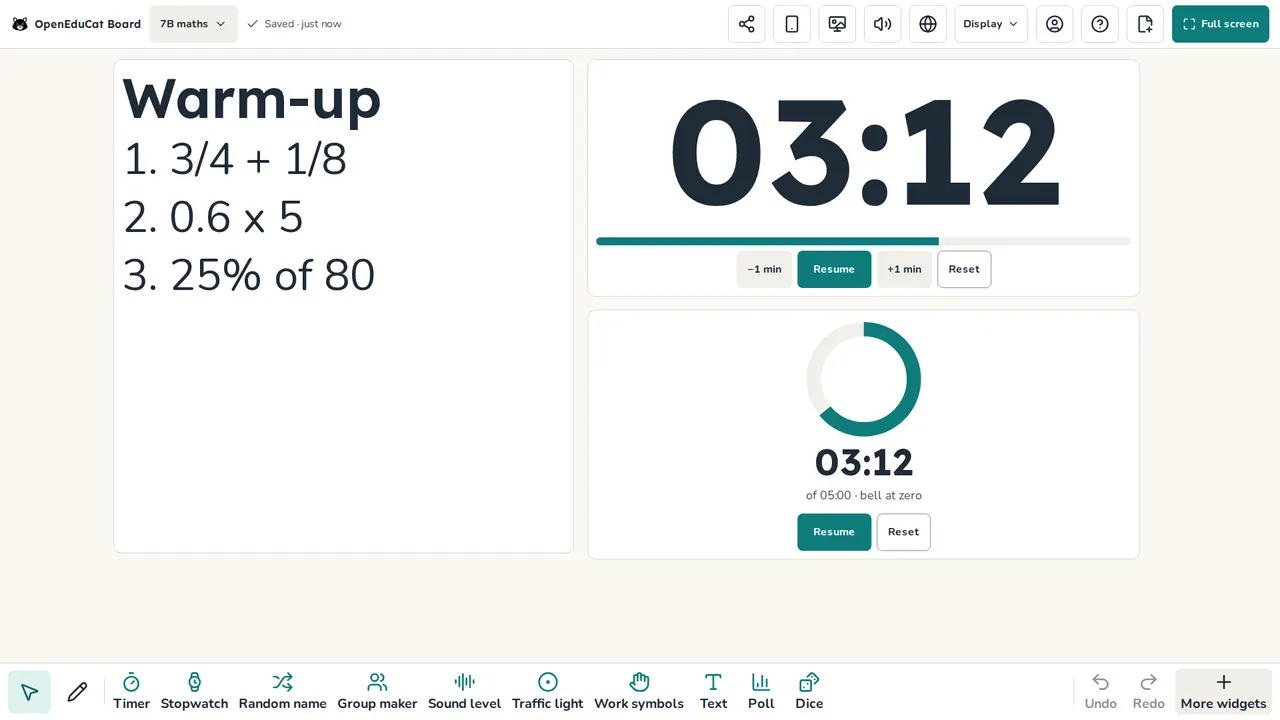
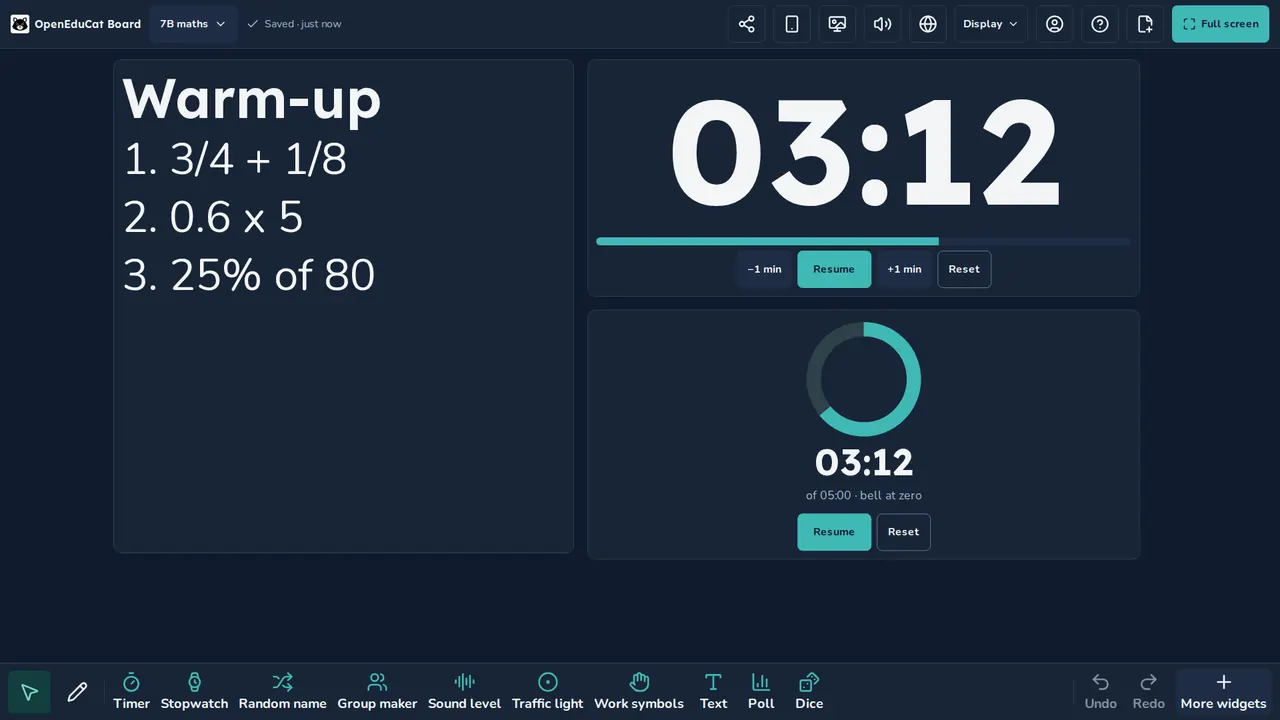
Put the warm-up on the board and start a big timer. The bell rings at zero, so you can walk the room instead of watching the clock.
Show the task
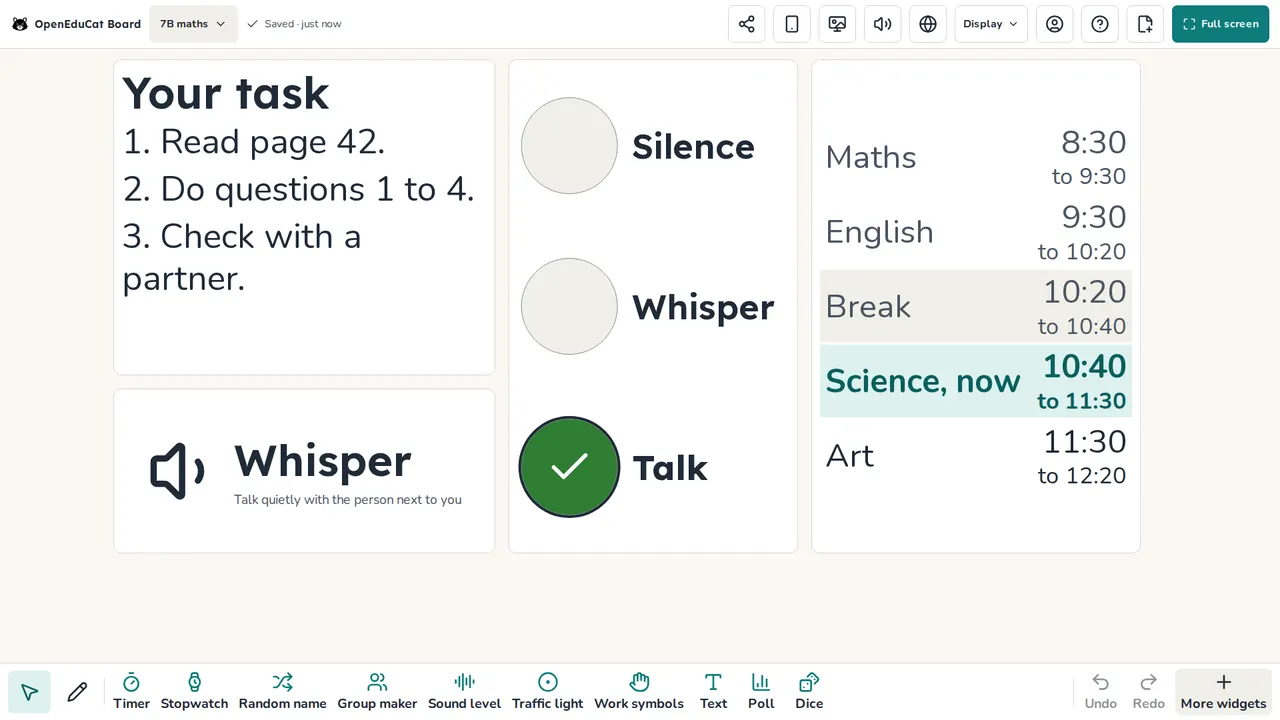
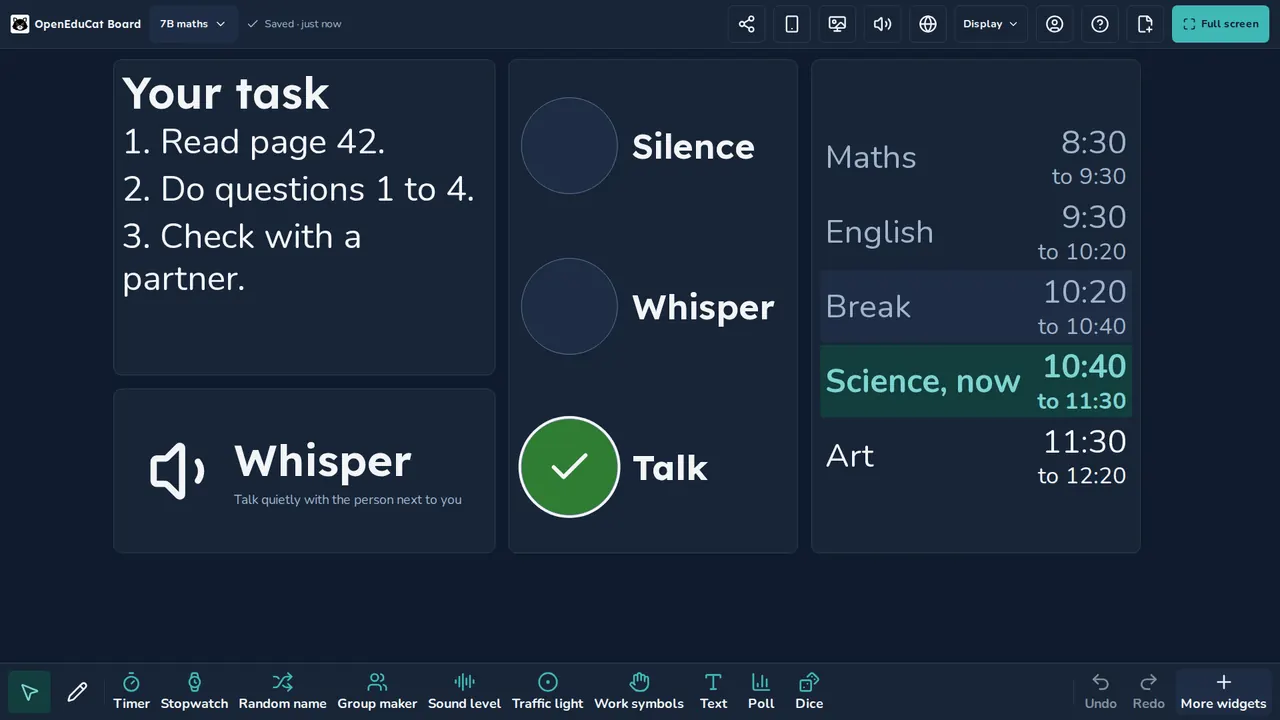
Write the steps in large text that reads from the back row. Work symbols and a traffic light show how to work now, and the visual schedule shows what comes next.
Choose who answers
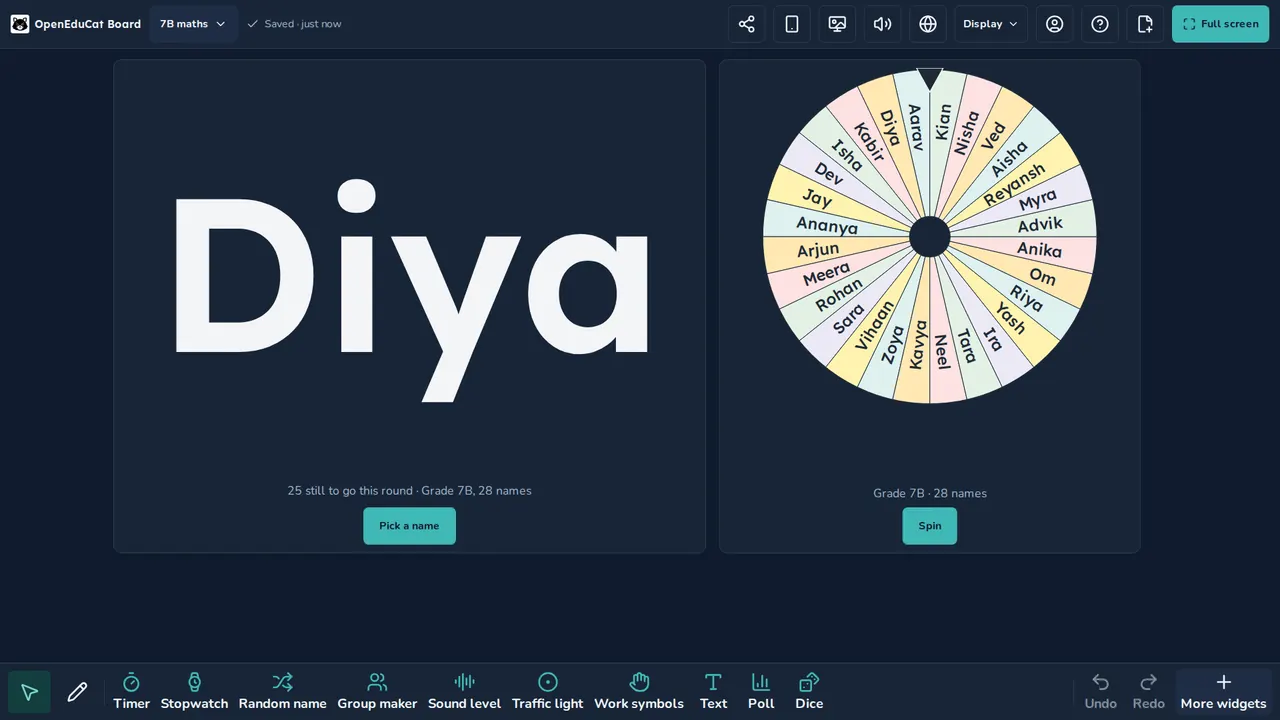
The random name picker gives everyone a turn before anyone gets a second. Load your class from My Class, set aside who is away today, or spin the names on a wheel.
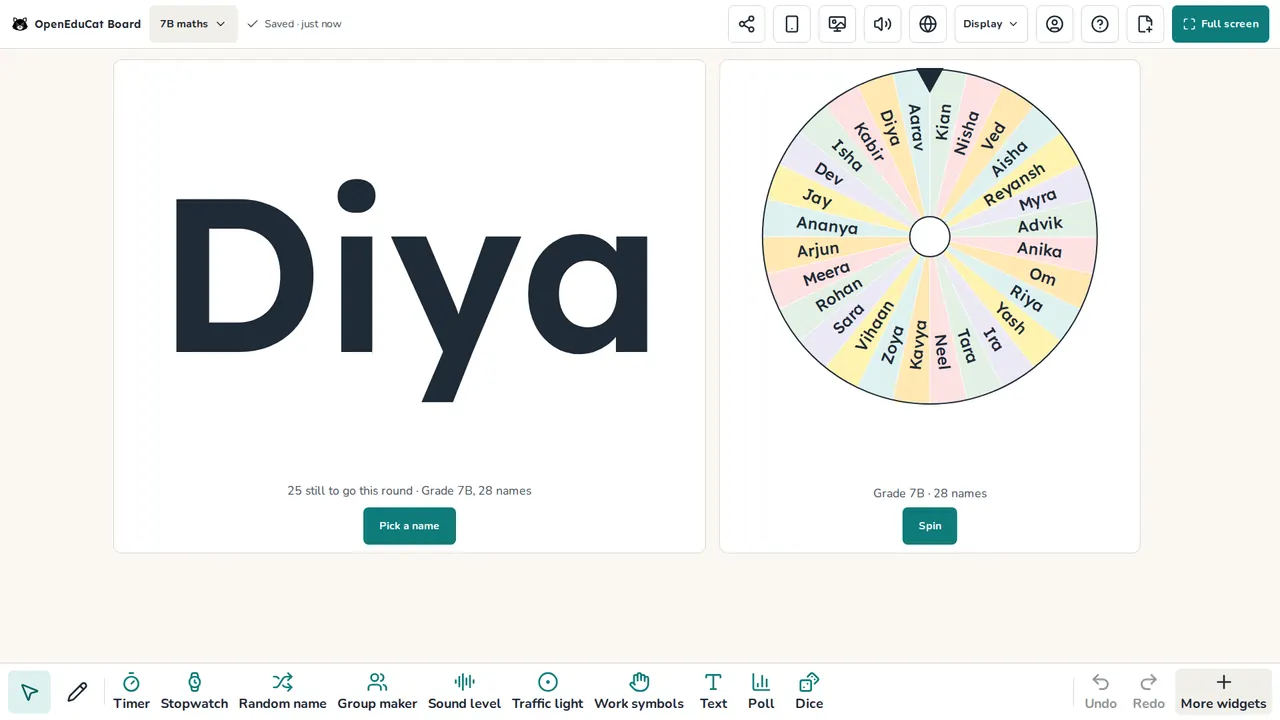
Make groups
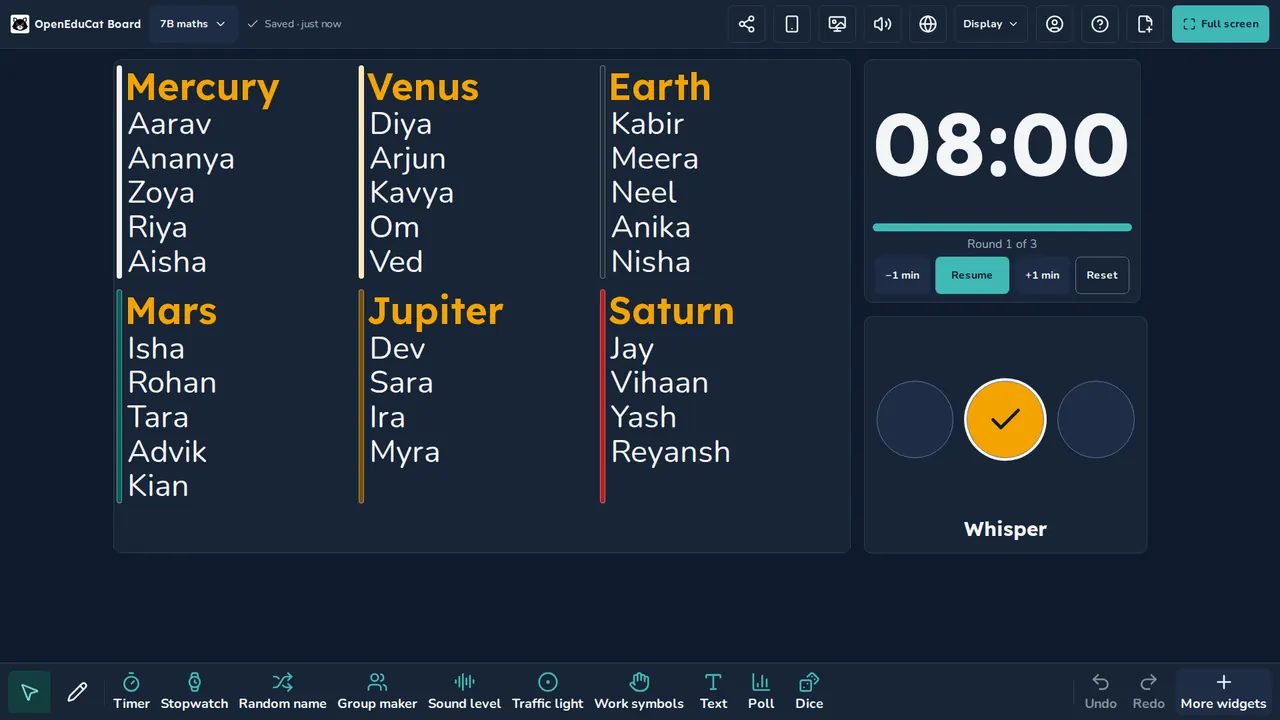
The group maker splits your class into groups in one press. Keep two names apart or balance the groups by reading level. Set the timer to repeat, and the bell tells each group when to move.
- Try it
- Group maker
- Timer
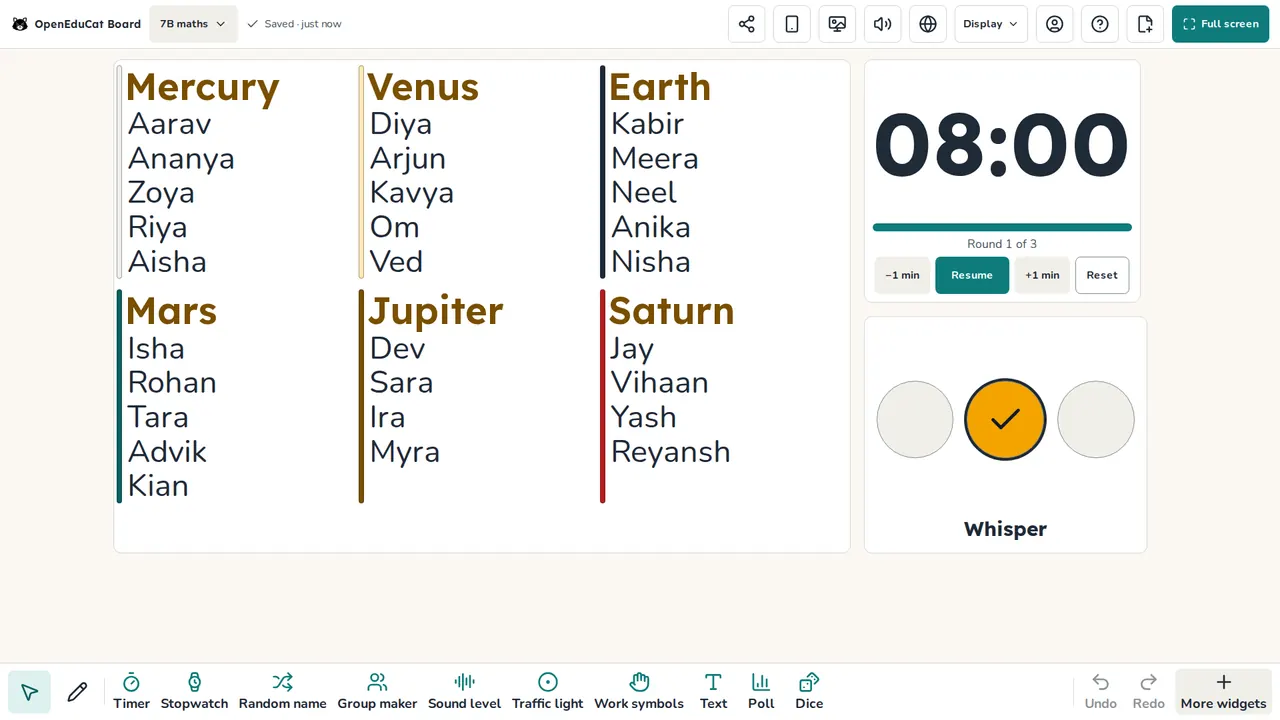
Check what they understood
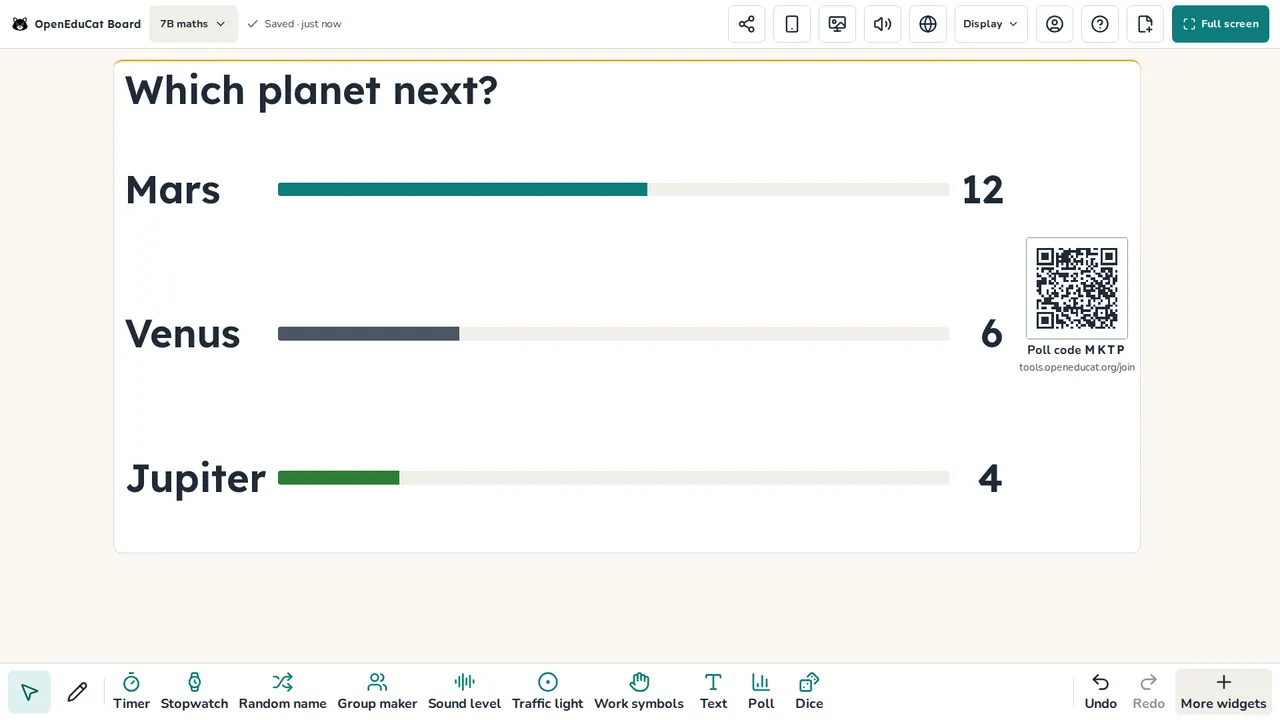
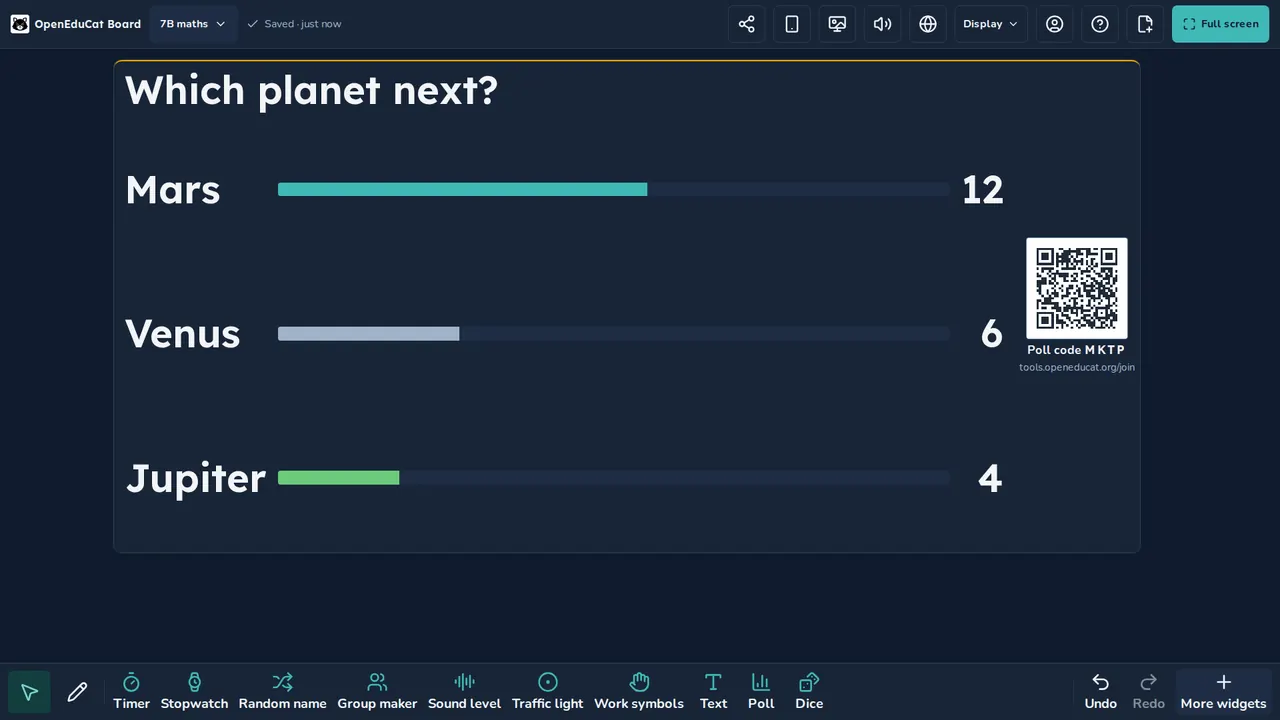
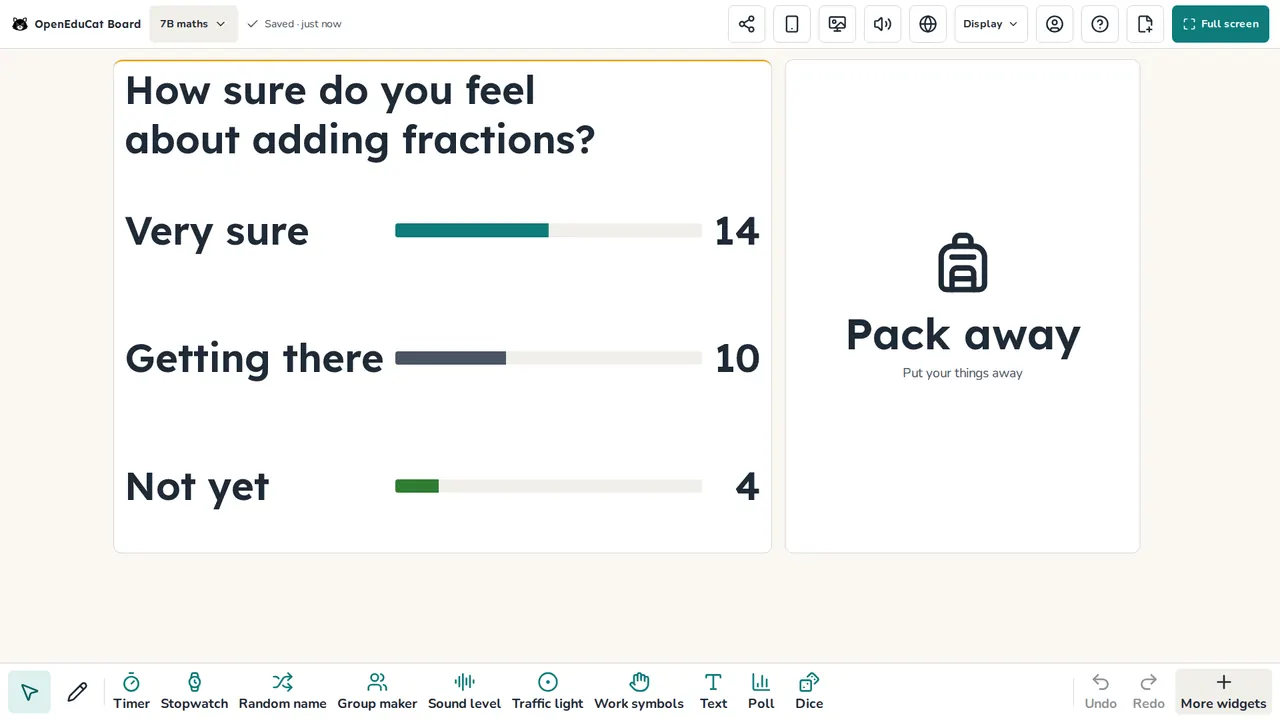
Ask a question, and students answer on their phones by scanning the QR code on the board. Votes are counted, never named. You can also ask for a word cloud, a 1 to 5 scale or a quick quiz.
Calm the room
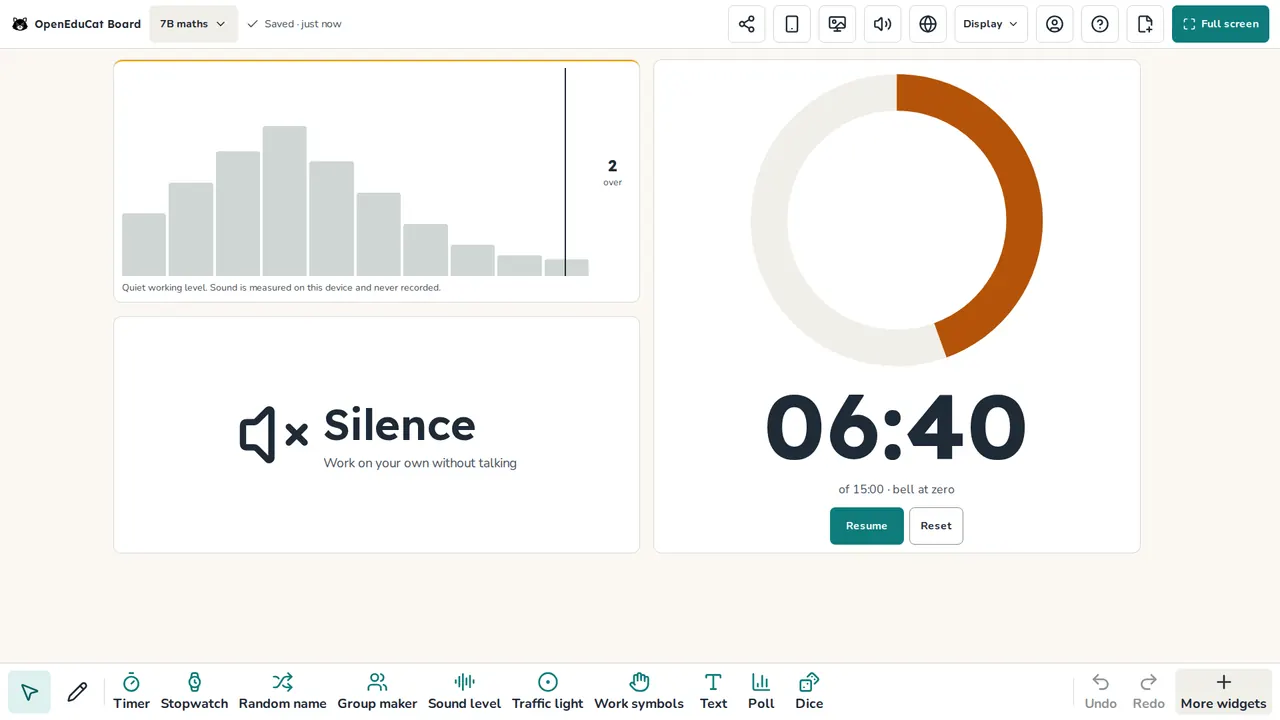
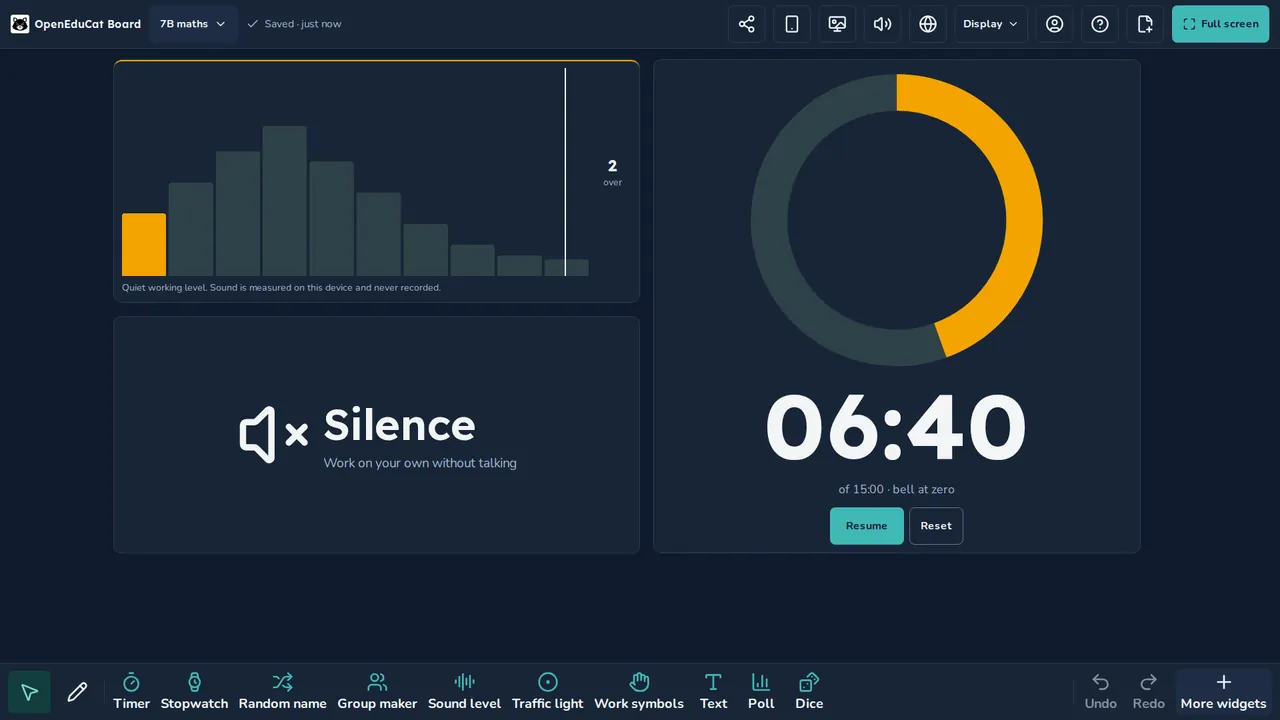
The noise meter shows how loud the room is and rings a bell over your limit, so you do not have to say it. It listens on this device and never records.
End the lesson
Close with an exit ticket poll. The screen saves to your account as you go, so the same board is ready for your next class.


Everything else on the board
27 widgets in all. Each name opens its own page.
Time and the day
Rewards and play
Board tools
- Reveal cover and spotlight, to show one part at a time
- Backgrounds, with video, a number line and handwriting lines
- Undo and redo, up to 50 steps
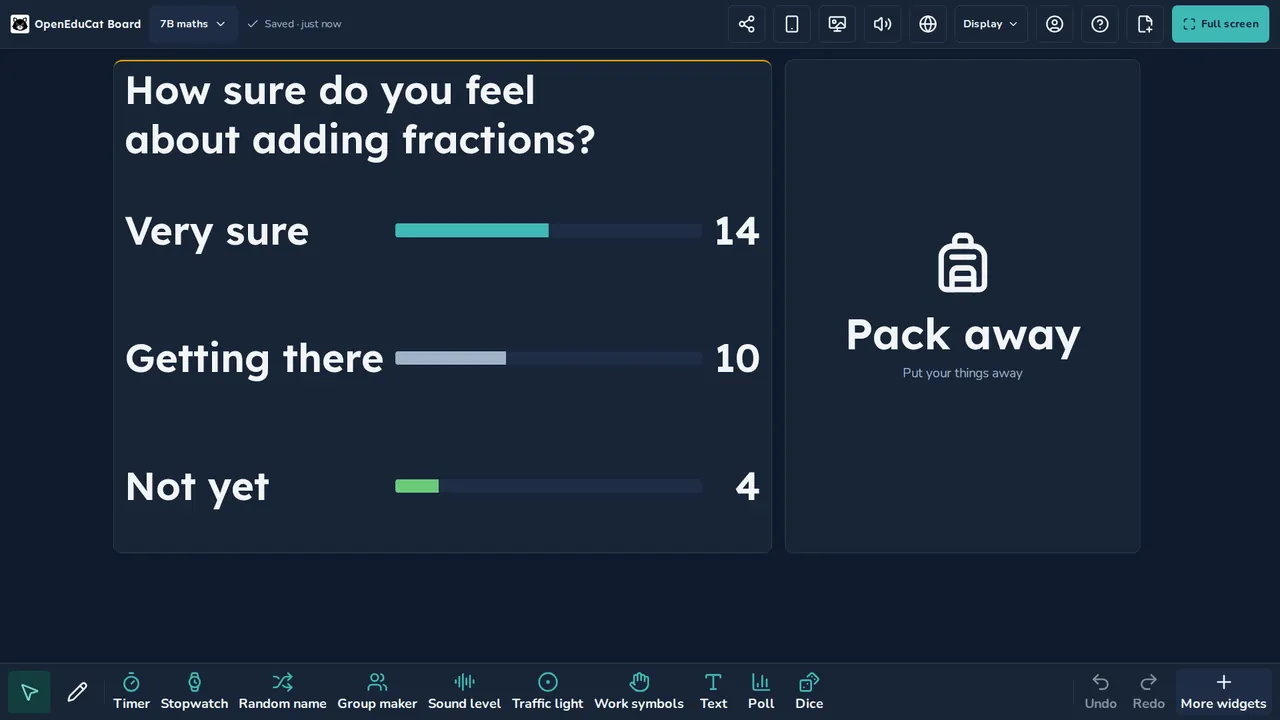
- Four colour themes, large type and a projector mode
- Up to 10 pages on a screen, and decks of screens
- Download a screen as a PDF or an image
- Snapshot and Live share links, Tidy up and a phone view
Ways teachers use the board
Step-by-step pages for common classroom jobs, each with a ready screen to open.
On your projector, TV or smart board
Open the board in the browser on the classroom computer. It fits a 16:9 screen or a 4:3 projector, and large type keeps it readable from the back row.
On a smart board or interactive board, panel mode gives bigger buttons for touch. You can sign a shared panel in from your phone with a 6-digit code, and nothing of yours stays on it after you leave.
After you sign in on a device, the board keeps working offline. Phone polls, and a PDF, video or web page from a link, need a connection.
Your screens, saved
Set up a lesson once, and it is there next week. Every screen saves to your account and opens on any device you sign in on. The free account keeps 10 screens, each with up to 10 pages, and the last 10 versions of each for 30 days.
Put screens in folders, or line them up as a deck and click to the next one. You can share a copy by link with a colleague.
Or start from one of 45 ready-made screens, all free:
In your language
The whole board works in 8 languages: English, Hindi, Arabic, Spanish, French, Portuguese, Vietnamese and Indonesian. In Arabic the whole board reads right to left, and names in any script work.
Privacy for your class
Students are never asked for their name. Poll votes are kept as counts only, for 24 hours. The noise meter and the webcam work on the device and never record.
There are no ads, and we never sell data. Your account and your screens stay in the region you choose at sign-up: the United States, Europe or Singapore.
Free, with a teacher account
Every widget, all 45 ready-made screens and 10 saved screens are free.
The account is what keeps your work. It saves your screens, class lists and settings, opens them on any device you sign in on, and lets the board work offline. Sign in with Google, Microsoft or a code sent to your email.
Coming from another tool?
Using another classroom screen or a whiteboard app now? See how the board compares, and how to bring your class lists over.
Questions teachers ask
Is OpenEduCat Board free?
Yes. Every widget, all 45 ready-made screens and 10 saved screens are free with a teacher account. There are no ads.
Why do I need an account?
The account keeps your screens, class lists and settings, and opens them on any device you sign in on. It also lets the board work offline once you sign in. Sign in with Google, Microsoft or a code sent to your email.
Can I use it on a smart board or interactive panel?
Yes. Open the board in the panel's browser. Panel mode gives bigger buttons for touch, and you can sign a shared panel in from your phone with a 6-digit code.
Does it work offline?
Yes, after you sign in on a device. The widgets keep working, and your changes sync when you are back online. Phone polls, and a PDF, video or web page from a link, need a connection.
How do students answer a poll on their phones?
Turn on remote voting, and the board shows a QR code and a 4-letter code. Students scan the QR code, or type the code at tools.openeducat.org/join, and answer. Votes are counted, never named.
Can I pick names from my own class list?
Yes. Type or paste a list, or load a class from My Class. The random name picker can remember who has had a turn, so everyone gets one before anyone gets a second.
Can I save a screen for the next lesson?
Yes. Every screen saves to your account as you work. The free account keeps 10 screens, each with up to 10 pages, and you can go back to an earlier version.
Can the noise meter ring an alarm?
Yes. Set a limit, and the bell rings when the room goes over it. The meter listens on the device and never records.
Is my students' data private?
Students are never asked for their name, and poll votes are kept as counts only, for 24 hours. The noise meter and the webcam never record. There are no ads, and we never sell data.
Start in three steps
- Create your free teacher account.
- Open the board on the classroom computer.
- Use it in your next lesson.
Made by OpenEduCat. Free with a teacher account.